How to setup a custom domain with Godaddy
Aug 26, 2025
Go to your custom domain dashboard
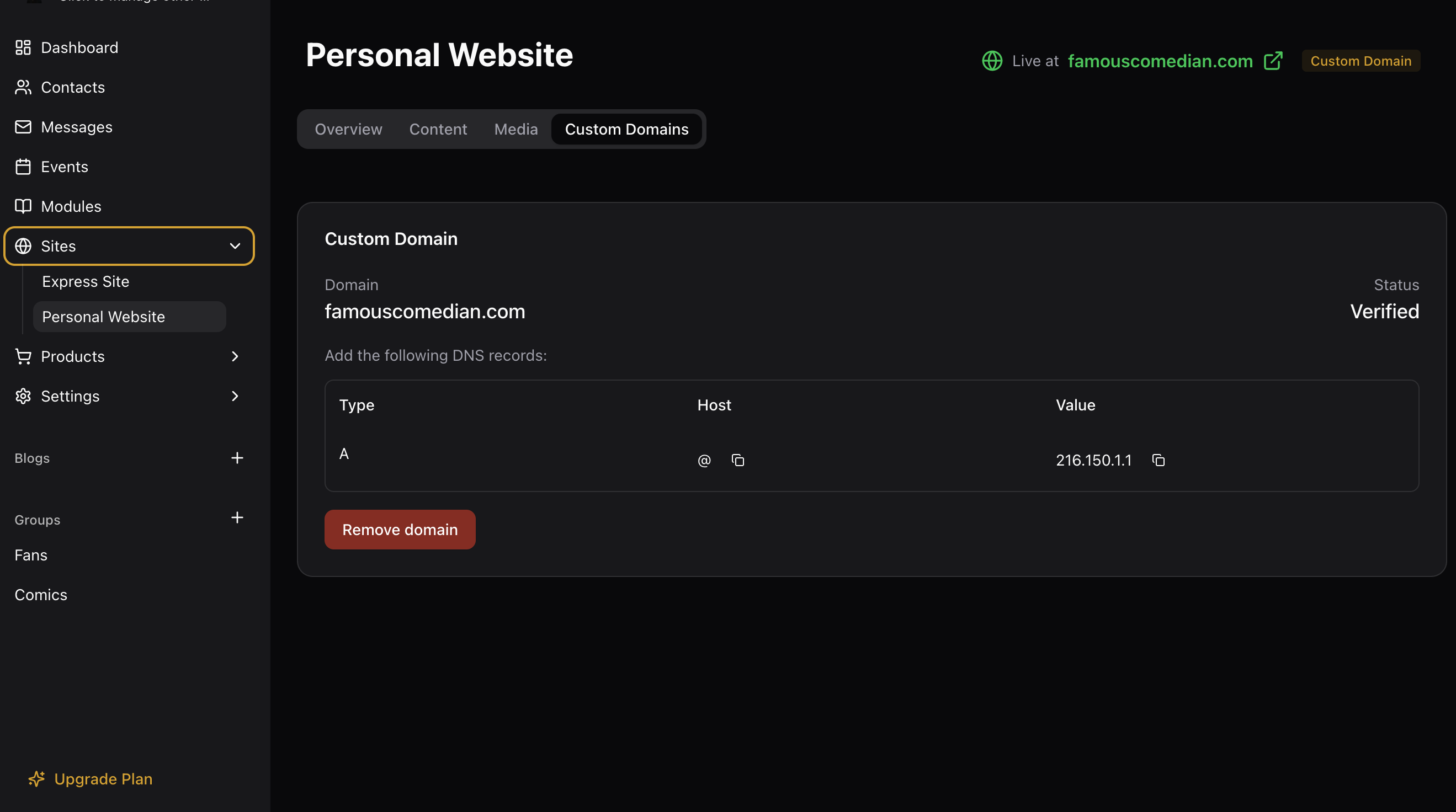
In the dashboard go to Sites > Personal Website
Click Custom Domains in top menu
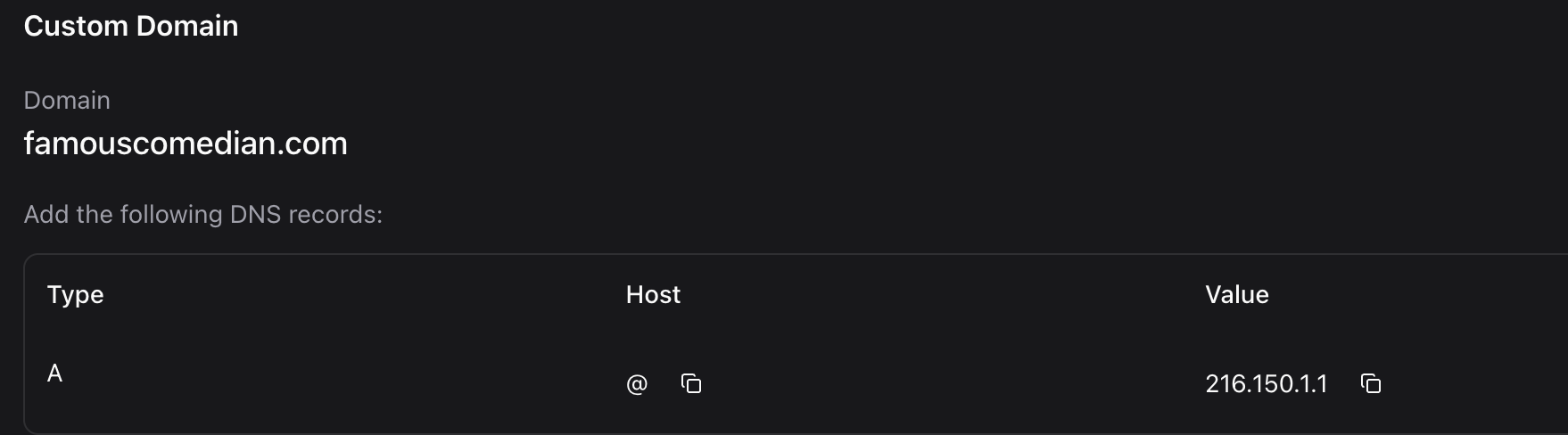
Notice your:
Type: A
Host: @
Value: A number
Go to Godaddy
Connect your domain to your website by adding an A record to your DNS zone file when your domain is using GoDaddy nameservers. A records, or address records, are the most fundamental type of DNS record and are used to indicate the IP address of a domain. The most common A record is for the root domain, like mycoolnewbusiness.com, and typically connects the domain to a hosting account.
Sign in to your GoDaddy Domain Portfolio. (Need help logging in? Find your username or password.)
Select an individual domain to access the Domain Settings page.
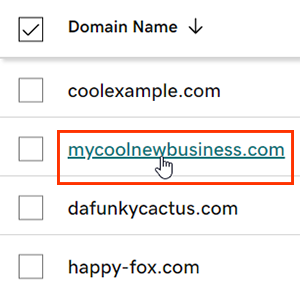
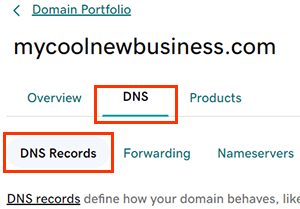
Select DNS to view your DNS records.
Select Add New Record and then select A from the Type menu.
Enter the details for your new A record.
Name: @ (Or whatever the value in Host was)
Value: Copy from your dashboard i.e. 216.150.1.1
TTL (Time to Live): The amount of time the server should cache information before refreshing. The default setting is 1 hour. This is fine

Delete to remove any records that haven't been saved yet.
Select Save to add your new record. If you added multiple records at the same time, select Save All Records.
Most DNS changes take effect within an hour but could take up to 48 hours to update globally.